
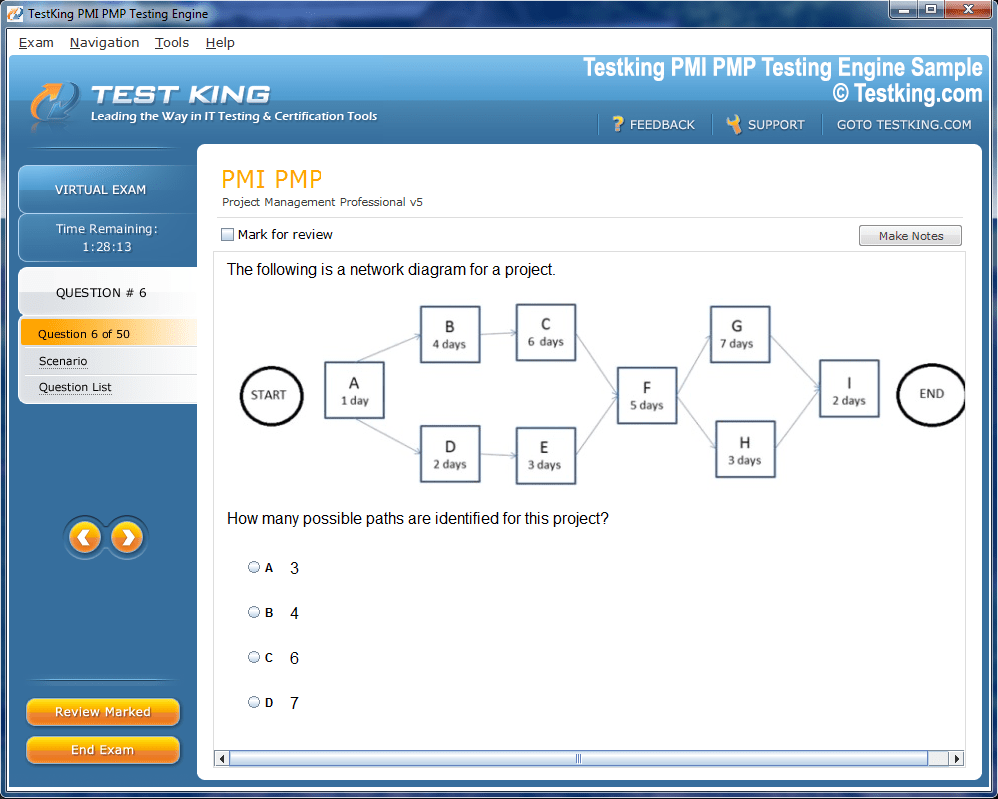
Product Screenshots
Frequently Asked Questions
Where can I download my products after I have completed the purchase?
Your products are available immediately after you have made the payment. You can download them from your Member's Area. Right after your purchase has been confirmed, the website will transfer you to Member's Area. All you will have to do is login and download the products you have purchased to your computer.
How long will my product be valid?
All Testking products are valid for 90 days from the date of purchase. These 90 days also cover updates that may come in during this time. This includes new questions, updates and changes by our editing team and more. These updates will be automatically downloaded to computer to make sure that you get the most updated version of your exam preparation materials.
How can I renew my products after the expiry date? Or do I need to purchase it again?
When your product expires after the 90 days, you don't need to purchase it again. Instead, you should head to your Member's Area, where there is an option of renewing your products with a 30% discount.
Please keep in mind that you need to renew your product to continue using it after the expiry date.
How many computers I can download Testking software on?
You can download your Testking products on the maximum number of 2 (two) computers/devices. To use the software on more than 2 machines, you need to purchase an additional subscription which can be easily done on the website. Please email support@testking.com if you need to use more than 5 (five) computers.
What operating systems are supported by your Testing Engine software?
Our 77-884 testing engine is supported by all modern Windows editions, Android and iPhone/iPad versions. Mac and IOS versions of the software are now being developed. Please stay tuned for updates if you're interested in Mac and IOS versions of Testking software.
Top Microsoft Exams
- AZ-104 - Microsoft Azure Administrator
- AI-103 - Developing AI Apps and Agents on Azure
- AB-100 - Agentic AI Business Solutions Architect
- SC-500 - Implementing End-to-End Security Controls for Cloud and AI Workloads
- AI-901 - Microsoft Azure AI Fundamentals
- DP-700 - Implementing Data Engineering Solutions Using Microsoft Fabric
- SC-300 - Microsoft Identity and Access Administrator
- AZ-305 - Designing Microsoft Azure Infrastructure Solutions
- AB-900 - Microsoft 365 Copilot and Agent Administration Fundamentals
- GH-300 - GitHub Copilot
- AB-620 - Designing and Building Integrated AI Agent Solutions in Copilot Studio
- PL-300 - Microsoft Power BI Data Analyst
- MD-102 - Endpoint Administrator
- AZ-900 - Microsoft Azure Fundamentals
- SC-401 - Administering Information Security in Microsoft 365
- DP-600 - Implementing Analytics Solutions Using Microsoft Fabric
- SC-200 - Microsoft Security Operations Analyst
- SC-100 - Microsoft Cybersecurity Architect
- MS-102 - Microsoft 365 Administrator
- DP-800 - Developing AI-Enabled Database Solutions
- AB-730 - AI Business Professional
- AB-731 - AI Transformation Leader
- AZ-700 - Designing and Implementing Microsoft Azure Networking Solutions
- AI-200 - Developing AI Cloud Solutions on Azure
- AB-410 - Building Intelligent Applications
- AZ-801 - Configuring Windows Server Hybrid Advanced Services
- AZ-400 - Designing and Implementing Microsoft DevOps Solutions
- DP-750 - Implementing Data Engineering Solutions Using Azure Databricks
- AZ-500 - Microsoft Azure Security Technologies
- PL-400 - Microsoft Power Platform Developer
- SC-900 - Microsoft Security, Compliance, and Identity Fundamentals
- AZ-140 - Configuring and Operating Microsoft Azure Virtual Desktop
- MS-700 - Managing Microsoft Teams
- DP-300 - Administering Microsoft Azure SQL Solutions
- AI-300 - Operationalizing Machine Learning and Generative AI Solutions
- PL-900 - Microsoft Power Platform Fundamentals
- AZ-800 - Administering Windows Server Hybrid Core Infrastructure
- DP-900 - Microsoft Azure Data Fundamentals
- MB-800 - Microsoft Dynamics 365 Business Central Functional Consultant
- PL-200 - Microsoft Power Platform Functional Consultant
- MB-310 - Microsoft Dynamics 365 Finance Functional Consultant
- GH-600 - Developing in Agentic AI Systems
- MB-230 - Microsoft Dynamics 365 Customer Service Functional Consultant
- AZ-204 - Developing Solutions for Microsoft Azure
- MB-330 - Microsoft Dynamics 365 Supply Chain Management
- MB-820 - Microsoft Dynamics 365 Business Central Developer
- AZ-802 - Administering Windows Server
- AI-900 - Microsoft Azure AI Fundamentals
- GH-200 - GitHub Actions
- MS-721 - Collaboration Communications Systems Engineer
- GH-900 - GitHub Foundations
- GH-100 - GitHub Administration
- AB-250 - Transforming Contact Center Experiences with AI in Dynamics 365
- MB-500 - Microsoft Dynamics 365: Finance and Operations Apps Developer
- GH-500 - GitHub Advanced Security
- AI-500 - Designing and Implementing Multi-Agent AI Solutions
- DP-420 - Designing and Implementing Cloud-Native Applications Using Microsoft Azure Cosmos DB
- AI-102 - Designing and Implementing a Microsoft Azure AI Solution
- MB-280 - Microsoft Dynamics 365 Customer Experience Analyst
- AB-650 - Administering Microsoft 365 and AI Services
- AZ-120 - Planning and Administering Microsoft Azure for SAP Workloads
- SC-400 - Microsoft Information Protection Administrator
- PL-600 - Microsoft Power Platform Solution Architect
- MS-900 - Microsoft 365 Fundamentals
- MB-910 - Microsoft Dynamics 365 Fundamentals Customer Engagement Apps (CRM)
- MB-700 - Microsoft Dynamics 365: Finance and Operations Apps Solution Architect
Microsoft 77-884: Your Complete Outlook 2010 Certification Prep
Microsoft Outlook 2010 is a comprehensive personal information manager that integrates email, calendar, contacts, tasks, and notes into a unified platform. For individuals seeking certification, proficiency in Outlook 2010 demonstrates a high degree of competence in managing communications, schedules, and workflow efficiently. Mastery of this software is not only useful for professional correspondence but also essential for organizational productivity. The 77-884 exam evaluates a candidate’s ability to use the software effectively, emphasizing both functional knowledge and strategic application.
The exam focuses on a combination of theoretical understanding and practical expertise, ensuring that users can navigate the interface with dexterity, customize features to optimize workflow, and troubleshoot common problems. Candidates who aim for certification should familiarize themselves with the nuanced tools and functionalities that distinguish Outlook 2010 from earlier versions, such as the Ribbon interface, advanced search features, and integrated task management. The software’s multifaceted capabilities can be intimidating, but systematic study and hands-on practice can render mastery attainable.
Understanding the Exam Objectives
The 77-884 exam encompasses several domains, each evaluating distinct competencies. Candidates must demonstrate proficiency in managing messages, organizing the calendar, handling contacts, coordinating tasks, and utilizing auxiliary tools like notes and journals. The exam requires not only knowledge of commands and menus but also the ability to apply features effectively in real-world scenarios.
In the messaging domain, applicants are expected to compose, format, and send emails with accuracy, manage attachments, and employ rules and filters to streamline correspondence. Calendar management entails scheduling appointments, coordinating meetings, and resolving conflicts while maintaining efficiency. Contact management includes creating and maintaining individual and group contacts, as well as leveraging distribution lists to facilitate communication. Task and note management tests a candidate’s ability to track responsibilities, set reminders, and integrate these features seamlessly into daily operations.
Exam Format and Question Types
The 77-884 examination consists primarily of multiple-choice questions, scenario-based simulations, and performance tasks. Multiple-choice items assess conceptual understanding and familiarity with commands, while simulations evaluate hands-on proficiency. Performance tasks challenge candidates to execute practical operations within Outlook 2010, reflecting the software’s typical use in a professional environment.
Questions often require candidates to discern subtle distinctions between similar features, such as the difference between flagging an email for follow-up and creating a task from a message. The ability to interpret scenarios accurately and choose the most efficient method of execution is critical. A thorough understanding of menu structures, shortcuts, and dialog boxes can provide a strategic advantage. Practicing with sample tasks or mock simulations is a highly effective approach to developing the procedural fluency necessary for the exam.
Setting Up Outlook 2010 for Practice
Before delving into advanced functionalities, establishing a conducive environment for practice is essential. Configuring multiple email accounts allows candidates to simulate diverse real-world situations. This can include personal and professional accounts, each with distinct rules, folders, and organizational structures. Creating a separate practice profile in Outlook ensures that testing and learning can occur without interfering with live communications.
Adjusting display settings and customizing the Ribbon interface can enhance efficiency and accessibility. Candidates should experiment with different reading pane layouts, folder views, and quick access toolbars. Familiarity with these customization options not only improves workflow but also prepares candidates to respond to exam scenarios that require interface adaptation. Practicing with dummy emails, calendar events, and task lists can reinforce operational competence and build confidence prior to the assessment.
Navigation and Interface Essentials
Outlook 2010 introduced a streamlined Ribbon interface, replacing traditional menus with contextual tabs that dynamically adjust according to selected tasks. Mastery of this interface is crucial for efficient navigation. Key areas include the Mail, Calendar, Contacts, Tasks, and Notes modules, each with its own set of tools and functions. The Navigation Pane provides a consolidated view of folders and shortcuts, enabling users to move between sections rapidly.
The Quick Access Toolbar can be customized to include frequently used commands, reducing reliance on extensive menu searches. Keyboard shortcuts further enhance speed and dexterity, enabling users to execute commands with minimal navigation. Understanding the layout and hierarchy of features allows candidates to anticipate commands intuitively, an essential skill for scenario-based questions in the exam.
Managing Multiple Email Accounts and Folders
A distinctive feature of Outlook 2010 is its ability to handle multiple accounts and complex folder hierarchies simultaneously. Candidates should practice organizing emails into folders and subfolders, using categories and flags for prioritization. Advanced users can apply conditional formatting rules to highlight specific types of messages, enhancing visual clarity.
Efficient folder management reduces clutter and ensures critical emails are accessible at a glance. Rules can automate repetitive actions, such as moving messages from certain senders into designated folders or applying color-coded categories. Mastering these techniques is crucial, as the exam often tests candidates on scenarios requiring rapid organization and categorization of large volumes of correspondence.
Enhancing Productivity with Search and Filtering
Outlook 2010 offers robust search capabilities, allowing users to locate messages, contacts, and calendar events quickly. The instant search feature supports advanced queries, including Boolean operators, specific field searches, and date ranges. Candidates should practice using search folders to consolidate messages based on predefined criteria, a technique that optimizes workflow in environments with high email volumes.
Filtering tools complement search functionality by allowing dynamic message sorting based on parameters such as sender, subject, or importance. The ability to combine multiple filters and searches demonstrates advanced proficiency, which is often reflected in higher-level exam questions. Developing familiarity with these tools ensures that candidates can manage large datasets efficiently and respond to scenario-based tasks with agility.
Customizing Outlook for Efficient Workflow
Customization is an often-overlooked aspect of Outlook mastery. Users can modify the Ribbon, Quick Steps, and toolbar settings to align with personal workflow preferences. Custom forms, templates, and automated actions can further streamline repetitive tasks. Candidates should experiment with these features to understand how customization can optimize day-to-day operations.
For example, Quick Steps allow multiple commands to be executed in sequence with a single click, reducing the time spent on repetitive processes. Templates can standardize responses to common queries, while custom views and conditional formatting can improve visibility and prioritization of critical items. Familiarity with these advanced options equips candidates to handle exam tasks requiring the application of multiple tools in concert.
Outlook 2010 is a multifaceted software solution that integrates communication, scheduling, and organizational tools. The 77-884 exam evaluates candidates on both practical proficiency and conceptual understanding, emphasizing real-world application. Mastery of the interface, email management, calendar scheduling, contact organization, and workflow optimization is essential for success.
Systematic practice, familiarity with advanced features, and strategic utilization of tools like search, filtering, and customization ensure candidates are prepared to navigate complex tasks with confidence. By understanding the software’s structure and capabilities in depth, individuals can approach the exam with dexterity and assurance, ultimately achieving certification and demonstrating proficiency in professional communication and organization.
Composing and Sending Emails
One of the fundamental skills assessed in the 77-884 exam is the ability to compose and send emails efficiently. Outlook 2010 offers a rich array of formatting options, allowing users to craft messages that are both clear and visually organized. Composing an email begins with selecting the appropriate account, which is particularly important when multiple accounts are configured. Users should pay attention to the To, Cc, and Bcc fields, ensuring that recipients receive information appropriately.
The subject line functions as a concise summary and should be crafted with precision. Messages may be enriched with tables, bullets, numbering, and hyperlinks to improve readability. Outlook also enables the insertion of images, charts, and other objects to convey information visually. Incorporating proper salutations and closings fosters professionalism, and the use of spell check and grammar tools ensures clarity and correctness. Mastery of these features is crucial, as the exam frequently tests the ability to apply formatting effectively within scenario-based tasks.
Managing Attachments
Attachments are a ubiquitous component of email communication, and Outlook 2010 provides multiple methods for managing them. Files can be attached directly from the local system, dragged into the message window, or linked from cloud storage services if configured. Candidates should understand how to compress large files and utilize file format compatibility to prevent delivery issues.
Outlook allows users to preview attachments without downloading them, a feature that enhances efficiency and safety. Additionally, managing attachments includes renaming, removing, or forwarding them as necessary. In complex workflows, attachments may need to be saved systematically in designated folders to maintain organization. Understanding the interplay between attachments, message size limits, and recipient accessibility is essential for passing advanced exam questions.
Organizing Messages Using Folders
Folders are an indispensable tool for email management, enabling users to categorize and store messages logically. Outlook 2010 supports nested folders, allowing for hierarchical organization that mirrors a user’s workflow or projects. Creating a clear folder structure reduces cognitive load and facilitates rapid retrieval of messages.
Rules can automatically sort incoming messages into folders based on sender, subject, or keywords, streamlining management in environments with high email volume. Categories can be applied in conjunction with folders, providing a secondary organizational layer. Proficiency in creating, renaming, and deleting folders, as well as moving messages efficiently, is frequently tested in scenario-based exam tasks. Candidates should practice constructing logical folder hierarchies that balance simplicity with comprehensiveness.
Using Flags and Categories
Flags and categories offer additional mechanisms to prioritize and organize emails. Flags can mark messages for follow-up, assign due dates, and create reminders that integrate with the task list. This feature ensures that critical emails are not overlooked and that users can manage multiple concurrent responsibilities effectively.
Categories provide a color-coded system for tagging messages based on project, department, or priority. Users can customize category names and colors to align with personal or organizational standards. The combined use of flags and categories fosters an intricate yet navigable organizational scheme, which is often emphasized in the exam through scenario-driven questions requiring multi-step prioritization strategies.
Searching and Filtering Emails
Effective management of messages necessitates mastery of Outlook’s search and filtering tools. The instant search feature allows users to locate emails by sender, subject, keyword, date, or attachment presence. Advanced query syntax, including Boolean operators, refines searches and enhances precision.
Search folders create dynamic collections of messages that meet specific criteria, functioning as virtual folders that automatically update as new messages arrive. Filtering complements search by providing temporary views of messages based on defined parameters. For instance, users can filter to view unread messages from specific contacts within a date range. Proficiency in search and filtering demonstrates efficiency and situational awareness, skills that are critical for performance tasks in the exam.
Implementing Email Rules
Rules automate repetitive email management tasks, a capability that underscores efficiency in professional environments. Rules can be configured to move messages from certain senders into designated folders, flag emails for follow-up, or forward messages to other accounts.
Complex rules may incorporate multiple conditions, such as combining sender, subject, and specific keywords. Understanding how to prioritize rules when conflicts arise is essential, as Outlook executes rules sequentially based on their order in the list. Exam scenarios often simulate high-volume inbox management, requiring candidates to demonstrate the ability to implement rules effectively and troubleshoot conflicts or unintended outcomes.
Managing Junk and Phishing Emails
Outlook 2010 includes robust mechanisms to identify and manage unwanted emails, including junk mail filtering and phishing alerts. Users can configure safe sender and blocked sender lists to control message flow, and messages identified as suspicious are segregated into a separate folder.
Recognizing the signs of phishing or fraudulent messages is an important skill for both exam scenarios and real-world email management. The ability to report suspicious messages, remove unsafe attachments, and ensure organizational security demonstrates a higher level of operational competence. Exam questions may assess knowledge of these tools through scenario-based tasks that simulate potential security threats.
Advanced Message Options
Beyond standard composition and management, Outlook 2010 provides advanced options that enhance message functionality. These include requesting read or delivery receipts, setting message importance levels, and delaying delivery for scheduled sending.
Candidates should practice using these features to understand their implications on workflow and communication etiquette. For example, delaying a message’s delivery allows for time-sensitive coordination, while requesting a read receipt ensures acknowledgment without constant follow-up. Advanced options often form the basis of scenario questions in the exam, requiring candidates to apply features judiciously in response to specific organizational needs.
Delegation and Shared Mailboxes
Delegation is a sophisticated feature that allows one user to manage another’s mailbox or calendar with appropriate permissions. This is particularly relevant for administrative assistants or team coordinators. Outlook 2010 allows delegation with varying levels of access, including the ability to read, create, or respond to messages on behalf of another user.
Shared mailboxes facilitate collaborative workflows by allowing multiple users to access a common mailbox. Understanding permissions, access restrictions, and notification settings is essential for efficient collaboration. Exam questions may test candidates on configuring delegation or shared mailboxes and managing corresponding tasks without compromising security or data integrity.
Archiving and Cleaning Mailboxes
Maintaining an organized mailbox involves both active management and periodic archival. Outlook 2010 supports manual and automatic archiving, allowing users to move older messages to local data files while keeping active folders uncluttered.
Mailbox cleanup tools provide insights into folder sizes, duplicate messages, and unused items. Efficient archival ensures that messages remain accessible for reference without impacting system performance. Candidates should understand the interplay between active folders, archives, and data file management, as the exam may simulate scenarios where organization and retrieval efficiency are evaluated.
Troubleshooting Common Email Issues
Exam preparation should include familiarity with common email issues, such as undeliverable messages, synchronization problems, and attachment errors. Outlook 2010 provides diagnostic tools, such as the Inbox Repair Tool, to resolve data file corruption, as well as connection status indicators to monitor server connectivity.
Candidates should practice troubleshooting basic issues independently, understanding error messages, and applying systematic problem-solving strategies. The exam may present scenarios requiring identification of the cause and selection of the most effective resolution, testing both knowledge and practical reasoning skills.
Managing email messages in Outlook 2010 requires a balance of organizational strategies, technical proficiency, and situational awareness. The 77-884 exam emphasizes practical application, including composing and sending messages, handling attachments, organizing folders, applying flags and categories, and using search and filtering tools. Advanced features, such as rules, delegation, and shared mailboxes, further test a candidate’s ability to streamline workflows and manage complex environments.
Systematic practice with real and simulated scenarios ensures that candidates develop dexterity and confidence. By integrating efficiency, precision, and adaptability into everyday message management, individuals not only prepare for the exam but also cultivate skills that are indispensable for professional communication and productivity.
Introduction to Calendar Management
Calendar management in Outlook 2010 is a critical component of professional efficiency and a key area in the 77-884 exam. The calendar module allows users to schedule appointments, meetings, and events while maintaining clarity and avoiding conflicts. Mastery of calendar features demonstrates organizational acumen and the ability to coordinate multiple tasks or people simultaneously. Candidates should focus on both the mechanics of scheduling and the strategic use of features that enhance productivity.
Effective calendar usage requires understanding the nuances of the interface, including the Ribbon layout, the navigation pane, and multiple viewing options. Outlook 2010 offers daily, weekly, and monthly views, each providing unique advantages for different planning scenarios. Being able to switch seamlessly between views and customize display options is essential for handling both exam tasks and real-world scheduling demands.
Creating Appointments and Events
Appointments are activities that occupy time on a calendar but do not involve other participants, while events may include additional elements or extended time frames. Creating appointments begins with selecting the date and time, followed by entering a descriptive subject. Candidates should practice specifying locations, adding notes, and configuring reminders.
Outlook 2010 supports recurring appointments, which are essential for managing repetitive tasks without manually duplicating entries. Users can select recurrence patterns such as daily, weekly, monthly, or custom sequences. Understanding how to edit or delete occurrences without affecting the entire series is a nuanced skill often evaluated in the exam. Properly configuring appointments ensures that calendars remain accurate, and reminders function as intended.
Scheduling Meetings and Managing Invitations
Meetings involve multiple participants and require coordination of availability. Outlook 2010 provides tools to propose meeting times, send invitations, and track responses. Users can view participants’ availability using the Scheduling Assistant, which displays overlapping commitments to identify optimal meeting slots.
When sending invitations, it is important to include pertinent details such as agenda, location, and attachments. Tracking responses allows users to monitor attendance and follow up with non-responders. Candidates should practice modifying meetings after invitations are sent, including rescheduling, changing locations, or updating agendas. The ability to handle dynamic scenarios efficiently is frequently tested in scenario-based exam questions.
Using Recurring Events and Reminders
Recurring events streamline the management of repeated responsibilities, from weekly team meetings to monthly reporting deadlines. Outlook 2010 offers flexible recurrence options, including patterns based on days, weeks, or months. Users can define end dates, occurrences, or even exceptions within a recurring series.
Reminders play a pivotal role in ensuring timely action. Notifications can be customized for time, sound, and display format, helping users maintain awareness of imminent appointments or deadlines. Understanding how to manipulate both recurrence and reminders together ensures candidates can create calendars that are precise, reliable, and responsive to changing schedules.
Sharing Calendars and Calendar Permissions
Outlook 2010 allows users to share calendars with colleagues, facilitating collaboration and transparency. Shared calendars can have various permission levels, including read-only, full access, or editor privileges. Properly configuring permissions is crucial to maintain data integrity while providing necessary visibility.
Users can also publish calendars online or within an organization, allowing participants to view schedules without sending individual invitations. Familiarity with sharing and permissions ensures that candidates can handle real-world collaborative scenarios efficiently. The exam often tests the ability to configure access appropriately while maintaining control over sensitive scheduling information.
Time Zones and Scheduling Conflicts
In a globalized environment, scheduling across multiple time zones is a common requirement. Outlook 2010 provides tools to assign specific time zones to appointments and meetings, ensuring participants receive accurate timing information. Awareness of daylight saving changes and local variations is also necessary for avoiding conflicts.
Scheduling conflicts occur when multiple appointments overlap or participants have unavailable slots. The Scheduling Assistant helps identify conflicts, and users can propose alternative times or delegate meetings to others. Candidates should practice resolving conflicts using these tools, as scenario-based questions often simulate multi-participant scheduling dilemmas requiring judicious decision-making.
Calendar Views and Customization
Customizing calendar views enhances usability and personal workflow efficiency. Outlook 2010 offers day, work week, week, and month views, along with an overlay option to display multiple calendars simultaneously. Users can adjust time scales, color-code appointments, and apply conditional formatting to highlight critical events.
Overlaying calendars is particularly useful for comparing schedules across teams or departments. Candidates should experiment with various views to understand which configurations maximize visibility and minimize cognitive load. Customizing views also includes adjusting default reminders, integrating tasks into calendar displays, and controlling which appointments appear in shared views.
Using Color-Coding and Categories
Color-coding and categories allow users to visually organize appointments, meetings, and tasks. Each category can be assigned a specific color and label, providing immediate recognition of type or priority. For example, project meetings, client calls, and personal appointments can each have distinct visual cues.
Categorizing events is an effective way to manage complex schedules and ensure that high-priority commitments are easily identifiable. Candidates should practice assigning categories both individually and in bulk, and applying filters to view only certain types of events. This skill demonstrates organizational precision and is frequently tested through scenario-based tasks in the exam.
Integrating Tasks with Calendar Events
Outlook 2010 enables seamless integration of tasks and calendar events. Tasks can be linked to specific appointments or meetings, ensuring that responsibilities are tracked alongside time-bound commitments. Users can set reminders, priorities, and statuses for tasks, which are then reflected in calendar views.
This integration ensures that no commitment, whether an action item or a scheduled meeting, is overlooked. Candidates should practice creating linked tasks, updating statuses, and observing their reflection in calendar overlays. The ability to manage interdependent items demonstrates operational sophistication, a competency the exam evaluates rigorously.
Delegation and Shared Scheduling
Just as with email, delegation is an important feature in calendar management. A user can grant another person the authority to schedule, modify, or cancel appointments on their behalf. Understanding how to configure delegation permissions ensures smooth collaboration without compromising security or data integrity.
Shared scheduling involves multiple users accessing the same calendar to coordinate events. The exam may present scenarios requiring candidates to configure shared calendars, assign permissions, and resolve conflicts for multiple participants. Proficiency in these skills demonstrates readiness for professional collaboration and operational efficiency.
Managing Multiple Calendars
Professionals often maintain multiple calendars simultaneously, such as separate calendars for work, personal projects, and team commitments. Outlook 2010 allows overlaying multiple calendars for a consolidated view or keeping them separate to avoid visual clutter.
Understanding how to toggle between calendars, apply filters, and share specific calendars with selective visibility is essential for comprehensive calendar management. Scenario-based exam questions often require candidates to navigate multiple calendars and ensure optimal scheduling without conflicts, testing both precision and strategic thinking.
Advanced Scheduling Techniques
Advanced techniques include creating custom working hours, defining exceptions for recurring events, and using conditional formatting to emphasize critical appointments. Users can also link tasks, emails, and contacts to calendar items, creating an interconnected organizational ecosystem.
Candidates should become familiar with leveraging these features to streamline workflow and maintain clarity. Advanced techniques often form the basis of exam simulations, requiring multi-step solutions that incorporate scheduling, categorization, and collaboration skills. The ability to anticipate conflicts, manage exceptions, and optimize visibility distinguishes proficient users from novices.
Mastery of calendar and scheduling tools in Outlook 2010 is essential for both the 77-884 exam and real-world professional efficiency. Competencies include creating and managing appointments, scheduling meetings, configuring recurring events, sharing calendars, handling time zones, and integrating tasks. Advanced skills such as delegation, managing multiple calendars, and applying conditional formatting further enhance effectiveness.
Candidates who practice systematically, explore advanced features, and simulate complex scheduling scenarios develop the dexterity necessary to navigate real-world demands. Understanding the interplay of these tools ensures accurate scheduling, timely reminders, and optimized collaboration, providing a solid foundation for exam success and professional productivity.
Contacts and Task Management
Contacts and task management in Outlook 2010 form the backbone of organizational efficiency, allowing users to maintain detailed records and systematically track responsibilities. The 77-884 exam evaluates a candidate’s ability to manage contacts, distribution lists, and tasks with precision, emphasizing both operational dexterity and strategic oversight. Effective management in this domain ensures seamless communication, timely completion of duties, and robust coordination across teams.
Outlook integrates contacts and tasks with email and calendar modules, creating a cohesive environment where communication and action items intersect. Candidates must not only know how to create and edit entries but also understand how to categorize, prioritize, and link them to broader workflows. The ability to manage contacts and tasks efficiently is critical in professional settings, where time and accuracy are paramount.
Creating and Editing Contacts
Contacts in Outlook 2010 serve as repositories for detailed information about individuals, organizations, and groups. Creating a contact involves entering essential fields such as name, email address, phone numbers, and company information. Advanced fields allow storage of physical addresses, birthdays, web pages, and notes, enabling a comprehensive profile for each contact.
Editing contacts requires attention to detail, ensuring that changes are reflected consistently across all modules. Candidates should practice modifying existing entries, updating multiple fields, and maintaining accurate records. The exam often tests scenarios requiring correction or augmentation of contact information, highlighting the importance of precision and systematic organization.
Using Contact Groups and Distribution Lists
Contact groups and distribution lists allow users to send messages to multiple recipients simultaneously, streamlining communication for teams, projects, or committees. Creating a distribution list involves selecting individual contacts, assigning a group name, and defining membership.
Advanced management includes adding or removing members, categorizing groups, and handling nested distribution lists. Scenario-based questions in the exam may require creating or modifying groups efficiently, ensuring all relevant recipients are included without duplication. Mastery of these tools demonstrates the ability to manage collaborative communication effectively and minimize manual effort.
Organizing Contacts with Categories and Notes
Categories and notes provide additional organizational layers for contacts. Categories, often color-coded, allow users to classify contacts by project, department, priority, or any custom criterion. Notes enable storage of supplementary information, such as meeting preferences, past interactions, or reminders about follow-up tasks.
Integrating categories and notes ensures that contacts are not merely stored but actively leveraged to enhance workflow and relationship management. The exam may present tasks requiring categorization or retrieval of contacts based on complex criteria, testing both analytical and operational competence. Candidates should practice combining these tools to create a structured and navigable contact repository.
Searching and Filtering Contacts
Efficient contact management requires mastery of search and filtering capabilities. Outlook 2010 provides advanced search options, enabling queries by name, email, company, category, or notes. Filters allow temporary views that highlight specific groups of contacts based on criteria such as recent interaction, location, or task association.
Search folders can be employed to maintain dynamic lists of contacts meeting predefined conditions. Candidates should practice creating, modifying, and using these tools to retrieve information quickly, a skill frequently evaluated in scenario-based exam questions. Understanding how to combine multiple search parameters and filters enhances speed and precision in contact management.
Creating, Assigning, and Tracking Tasks
Tasks in Outlook 2010 function as action items, enabling users to monitor responsibilities from inception to completion. Creating a task involves defining a subject, due date, start date, priority, and status. Advanced options allow assignment of categories, reminders, and notes, facilitating detailed planning and tracking.
Assigning tasks to others involves specifying recipients, setting due dates, and tracking progress. The task owner can monitor completion, update statuses, and provide feedback through integrated messaging. The exam may present scenarios requiring candidates to assign, update, or follow up on tasks efficiently, emphasizing operational acumen and workflow awareness.
Setting Priorities and Statuses for Tasks
Prioritization ensures that critical tasks are completed on time, while status tracking provides visibility into ongoing progress. Outlook 2010 allows users to mark tasks as low, normal, or high priority, and assign statuses such as not started, in progress, completed, waiting on someone else, or deferred.
Candidates should practice assigning priorities and updating statuses systematically. Scenario-based questions may require candidates to rearrange priorities based on changing conditions or monitor task progression across multiple assignees. Understanding the interplay between priority, status, and due date ensures timely and effective task completion, a competency integral to both exam success and real-world productivity.
Integrating Tasks with Emails and Calendar
Tasks can be linked to emails or calendar events to create an interconnected workflow. For example, an email requiring action can be converted into a task, with reminders and due dates assigned automatically. Similarly, tasks can be associated with calendar entries to ensure time-bound responsibilities are visible alongside scheduled events.
This integration ensures that no action item is overlooked and that communication, scheduling, and task management function cohesively. Candidates should practice converting emails to tasks, linking tasks to calendar events, and monitoring progress through combined views. Scenario-based exam questions often test the ability to utilize these integrations effectively, emphasizing practical application over rote knowledge.
Using Recurring Tasks
Recurring tasks allow users to manage repetitive responsibilities without manually creating duplicate entries. Outlook 2010 supports daily, weekly, monthly, and custom recurrence patterns, with options to define end dates or limit the number of occurrences.
Managing recurring tasks requires understanding how changes to one instance affect the series. Candidates should practice modifying individual occurrences, updating entire series, and handling exceptions. This skill is frequently tested in the exam through scenarios simulating ongoing responsibilities that require nuanced adjustments and careful monitoring.
Delegation of Tasks
Delegation enables one user to assign tasks to another, with the ability to track progress and receive updates. This feature is essential in collaborative environments where responsibilities are distributed across team members.
Candidates should practice configuring delegation permissions, assigning tasks appropriately, and monitoring completion without manual follow-up. The exam may present scenarios requiring delegation of tasks while maintaining oversight, testing both operational understanding and situational judgment. Proficiency in this area demonstrates readiness for professional team coordination.
Organizing Tasks with Categories and Flags
Categories and flags enhance the visibility and prioritization of tasks. Categories, often color-coded, allow tasks to be grouped by project, department, or priority. Flags provide reminders and integrate with the calendar, ensuring tasks are completed on schedule.
Effective use of categories and flags enables users to filter, sort, and manage tasks with precision. Candidates should practice combining these tools to create a structured task environment, reinforcing both operational efficiency and exam preparedness. Scenario-based questions often assess the ability to organize and retrieve tasks according to complex criteria.
Advanced Task Management Features
Outlook 2010 offers advanced features such as recurring reminders, task dependencies, and detailed notes for tasks. Users can link tasks to emails, contacts, or calendar entries to maintain a holistic view of responsibilities. Conditional formatting can be applied to highlight overdue tasks or high-priority items, ensuring immediate visibility.
Candidates should explore these advanced options to understand their practical application. Exam scenarios may require multi-step operations involving categorization, integration, delegation, and prioritization of tasks, testing both knowledge and procedural dexterity. Mastery of these features demonstrates comprehensive understanding and preparedness for professional use.
Managing contacts and tasks in Outlook 2010 requires meticulous attention to detail, organizational skill, and an understanding of integrated workflows. The 77-884 exam assesses candidates on creating, editing, and organizing contacts, managing distribution lists, assigning and tracking tasks, and leveraging advanced features such as categories, flags, and recurring patterns.
Systematic practice, combined with an understanding of the relationships between contacts, tasks, emails, and calendars, ensures operational competence. Candidates who develop efficiency, precision, and strategic awareness in this domain are well-prepared for exam scenarios and professional responsibilities alike. Mastery of these tools enables seamless communication, organized task tracking, and optimized productivity, forming a foundation for both certification success and workplace effectiveness.
Notes and Journals
Notes and journals in Outlook 2010 offer auxiliary tools that complement email, calendar, contacts, and task management. While often underutilized, these features provide a framework for capturing fleeting ideas, tracking activities, and maintaining a historical record of professional interactions. The 77-884 exam evaluates not only the practical ability to use these tools but also the candidate’s understanding of how they integrate with other Outlook modules.
Notes function as digital post-its, ideal for recording thoughts, reminders, or concise pieces of information that may not warrant a task or calendar entry. Journals, on the other hand, provide a chronological record of interactions, including email correspondence, meetings, and document activity. Mastery of these features enhances organizational awareness and ensures that users can document activities systematically for review or reporting purposes.
Creating and Organizing Notes
Creating a note in Outlook 2010 is straightforward: users open the notes module, enter text, and save the note. However, effective note management requires strategic categorization and prioritization. Notes can be color-coded, categorized, and flagged for follow-up, providing visual cues that facilitate retrieval and action.
Candidates should practice creating notes for varied purposes, such as reminders for meetings, short-term ideas, or task follow-ups. Organizing notes by category or color enables quick access and reduces cognitive clutter. The exam may simulate scenarios requiring the creation, categorization, and retrieval of notes efficiently, emphasizing procedural competence alongside conceptual understanding.
Using the Journal Feature
The Journal feature in Outlook 2010 automatically logs activities, including email messages, meetings, phone calls, and document interactions. Each journal entry includes details such as date, duration, and type of activity, creating a chronological record that can be analyzed for productivity or reference purposes.
Candidates should explore how to manually create journal entries, categorize activities, and adjust settings to track specific types of interactions automatically. The ability to interpret and manage journal entries demonstrates operational awareness and attention to detail, qualities that are frequently assessed in exam scenarios. Journals provide a historical perspective, enabling users to trace communication patterns and workflow efficiently.
Customizing Notes and Journals
Customization enhances the utility of notes and journals. Users can adjust default colors, fonts, and categories, ensuring that visual cues align with personal or organizational standards. Notes can be resized, sorted, and searched, while journal entries can be filtered by type, date, or associated contact.
Understanding customization options allows candidates to tailor these features to their workflow, creating an environment optimized for productivity. Scenario-based questions in the exam may require modifying note or journal settings to improve accessibility or organization, testing both familiarity with the interface and applied problem-solving skills.
Quick Steps and Custom Actions
Quick Steps are a powerful feature in Outlook 2010 that enable users to automate multi-step actions with a single click. For example, an email can be moved to a designated folder, flagged for follow-up, and forwarded to a colleague simultaneously.
Candidates should practice creating and managing Quick Steps, understanding how they streamline repetitive tasks and improve efficiency. Custom actions extend this functionality by allowing users to define additional commands and sequences tailored to individual workflow needs. Proficiency with Quick Steps demonstrates a strategic approach to productivity, which is a focus of the exam’s practical scenarios.
Working with Outlook Templates
Templates in Outlook 2010 allow users to standardize messages and streamline communication. Templates can include predefined text, formatting, and attachments, ensuring consistency and efficiency in routine correspondence.
Candidates should practice creating, saving, and using templates, understanding how they can be applied in different contexts, such as recurring notifications, status updates, or standard replies. The exam may present tasks that require the deployment of templates in simulated workflows, testing both technical knowledge and operational reasoning. Templates are a tool for reducing manual repetition while maintaining professional standards in communication.
Managing Outlook Data Files
Outlook 2010 stores emails, calendar items, contacts, tasks, and notes in data files with extensions such as .pst and .ost. Understanding the differences between these file types and how they function is crucial for effective data management.
.pst files are personal storage files that can be archived locally, while .ost files synchronize with Exchange servers for offline access. Candidates should practice creating, opening, and managing data files, including importing and exporting content as needed. Exam scenarios may simulate data management challenges, requiring candidates to organize, archive, or restore items without data loss, testing both technical proficiency and problem-solving skills.
Backup and Archiving
Regular backup and archiving of Outlook data files ensure information preservation and system performance. Outlook 2010 provides manual and automatic archiving options, allowing users to move older items to separate storage while maintaining access to current data.
Candidates should understand how to configure archiving settings, select items for backup, and retrieve archived content. Effective archiving contributes to operational efficiency and reduces clutter, a principle emphasized in the exam through scenario-based tasks. Maintaining data integrity during archiving and backup procedures demonstrates meticulous attention to detail, a key attribute in professional environments.
Importing and Exporting Data
Outlook 2010 supports importing and exporting of emails, contacts, calendar items, and tasks, enabling migration between accounts or integration with other applications. Import and export operations can involve .pst files, CSV files, or synchronization with third-party services.
Candidates should practice executing import and export tasks accurately, understanding potential pitfalls such as duplicate entries, data corruption, or formatting discrepancies. The exam may require candidates to demonstrate competency in transferring data without loss, ensuring continuity of workflow and organizational consistency. Mastery of these operations reflects both technical aptitude and procedural awareness.
Advanced Search and Filtering Techniques
Advanced search and filtering extend beyond the basic capabilities, enabling users to locate notes, journal entries, emails, and tasks based on complex criteria. Boolean operators, specific fields, and search folders allow dynamic retrieval of information in large datasets.
Candidates should practice applying multiple search parameters simultaneously, such as combining date ranges with categories or contact associations. Scenario-based questions may present multi-step retrieval challenges, testing analytical thinking and operational proficiency. Advanced search techniques enhance efficiency, particularly when managing high volumes of items across multiple Outlook modules.
Integrating Notes and Journals with Other Modules
Notes and journals can be linked to emails, tasks, calendar events, and contacts to create a cohesive workflow ecosystem. For example, a note may reference a task, or a journal entry may document the completion of a meeting-related assignment.
Candidates should practice creating cross-module links, understanding how changes in one area reflect in others. Integration fosters clarity, reduces redundancy, and ensures that users maintain a comprehensive view of ongoing responsibilities. The exam may simulate scenarios requiring candidates to use these interconnections efficiently, emphasizing applied knowledge and strategic operational thinking.
Troubleshooting and Optimizing Features
Effective management of notes, journals, and advanced features requires troubleshooting skills. Common issues include misfiled journal entries, missing notes, or misconfigured Quick Steps. Outlook 2010 provides diagnostic tools, settings adjustments, and recovery options to address these challenges.
Candidates should develop systematic problem-solving strategies, such as verifying settings, reviewing categories, and confirming file integrity. The exam may present scenarios requiring resolution of functional discrepancies, testing both knowledge and analytical skills. Optimizing these features enhances productivity and demonstrates mastery of advanced Outlook capabilities.
Notes, journals, and advanced Outlook 2010 features represent tools for capturing, organizing, and optimizing information beyond standard email and calendar management. The 77-884 exam evaluates candidates on their ability to create, customize, and integrate these features, emphasizing both operational skill and strategic awareness.
Mastery involves not only knowing how to execute functions but also understanding how they interrelate with other Outlook modules. Proficiency with notes, journals, Quick Steps, templates, data file management, archiving, and advanced search ensures a holistic command of the software. Candidates who practice systematically, integrate features thoughtfully, and troubleshoot efficiently develop the dexterity and confidence necessary to excel in both the exam and professional environments.
Exam Preparation
Preparing for the Microsoft 77-884 Outlook 2010 exam requires more than memorization; it demands a comprehensive understanding of software functionality, practical experience, and strategic study habits. The exam evaluates candidates on their ability to navigate the interface, manage communications, organize schedules, and utilize advanced features efficiently. Developing a structured preparation plan ensures mastery of concepts while building confidence for performance-based and scenario-oriented questions.
Candidates should focus on both theoretical knowledge and hands-on practice. Real-world application of Outlook 2010 features enhances retention and readiness, while understanding the exam structure provides insights into time management and question patterns. This dual approach ensures comprehensive preparedness and increases the likelihood of achieving certification.
Understanding the Exam Objectives
The 77-884 exam encompasses multiple domains, including email management, calendar and scheduling, contacts, tasks, notes, journals, and advanced Outlook features. Candidates must demonstrate operational proficiency across these areas, integrating knowledge into practical workflows.
Email management involves composing, sending, and organizing messages, managing attachments, and applying rules and filters. Calendar skills include creating appointments, scheduling meetings, handling recurring events, and coordinating across time zones. Contact management focuses on creating, editing, and categorizing contacts, while task management requires prioritization, delegation, and integration with calendar events. Advanced features, notes, and journals require customization, linking, and efficient organization.
Understanding these objectives allows candidates to allocate study time effectively, ensuring that all domains receive sufficient attention. Scenario-based questions often combine multiple domains, testing the ability to apply knowledge holistically rather than in isolation.
Developing a Study Plan
A well-structured study plan is crucial for exam success. Candidates should begin with a comprehensive review of the exam objectives, identifying areas of strength and topics requiring deeper focus. Dividing study time into manageable segments ensures coverage without overwhelming cognitive capacity.
Hands-on practice should accompany theoretical study, allowing candidates to apply concepts in realistic contexts. For example, creating test email accounts, simulating meeting schedules, and organizing sample tasks and contacts reinforce learning. Regular practice with advanced features, such as Quick Steps, templates, and recurring tasks, develops operational fluency and confidence.
Incorporating review sessions, self-assessment, and periodic simulation exams into the study plan provides feedback and highlights areas needing reinforcement. This iterative approach cultivates both skill and assurance, preparing candidates for the exam’s practical and scenario-based components.
Practice with Sample Scenarios
Scenario-based practice is one of the most effective preparation methods. Candidates should simulate real-world workflows, combining multiple Outlook 2010 features. For example, managing a project may involve creating calendar events, assigning tasks, categorizing contacts, and sending follow-up emails.
Practicing these scenarios develops problem-solving skills, ensures efficient execution of tasks, and reinforces understanding of feature interconnections. Candidates should focus on accuracy, speed, and adherence to professional standards. Scenario practice also helps anticipate potential exam challenges, such as managing multiple calendars simultaneously or resolving conflicts in scheduling and task assignments.
Time Management During the Exam
Effective time management is essential, given the exam’s combination of multiple-choice questions and performance-based simulations. Candidates should allocate time according to question complexity, leaving sufficient time for scenario-based tasks that may require multiple steps.
Prioritizing tasks within the exam involves identifying questions that can be answered quickly, saving more time for challenging simulations. Practicing under timed conditions helps develop pacing strategies, reduces anxiety, and ensures that all questions are addressed efficiently. Candidates should also familiarize themselves with the interface used during the exam, including navigation, toolbars, and command locations, to minimize delays during task execution.
Avoiding Common Pitfalls
Several common pitfalls can hinder exam success. Candidates may overlook nuanced distinctions between similar features, misinterpret scenario requirements, or fail to apply advanced tools efficiently. Practicing with realistic scenarios and reviewing mistakes helps mitigate these risks.
Additionally, neglecting hands-on practice or relying solely on theoretical knowledge can result in poor performance in simulation tasks. Candidates should balance conceptual understanding with applied skills, ensuring fluency across all features tested. Awareness of potential pitfalls allows candidates to approach questions cautiously, reducing the likelihood of errors under exam conditions.
Using Microsoft Resources for Preparation
Microsoft provides built-in resources and practice tools within Outlook 2010 that can enhance preparation. Sample tasks, test data, and feature guides allow candidates to explore functionality systematically and develop familiarity with commands, menus, and workflows.
Candidates should utilize these resources to practice operations such as email rules, recurring tasks, shared calendars, and delegation. Engaging with built-in tutorials or practice exercises strengthens operational skills and reinforces knowledge of nuanced commands. Familiarity with the software environment enhances confidence during scenario-based questions, where precise execution is critical.
Reviewing Key Concepts and Commands
Reviewing key concepts and commands is essential in the final stages of preparation. Candidates should consolidate knowledge of frequently used features, such as composing messages, scheduling appointments, creating tasks, and managing contacts. Additionally, they should review advanced features, including Quick Steps, templates, notes, and journals.
A checklist approach ensures that all domains are covered, highlighting any remaining areas that require attention. Regular review sessions reinforce retention, reduce cognitive load during the exam, and provide a structured method for last-minute preparation. Candidates should focus on operational sequences, understanding the step-by-step procedures required for efficient execution of tasks.
Mock Exams and Self-Assessment
Mock exams provide a realistic simulation of the 77-884 testing environment, including both multiple-choice questions and performance-based simulations. Candidates should practice under timed conditions, evaluating accuracy, efficiency, and application of knowledge.
Self-assessment allows candidates to identify strengths and weaknesses, refine strategies, and allocate additional study time as needed. Reviewing incorrect responses and analyzing mistakes enhances understanding of feature functionality and reinforces procedural memory. Repeated practice with mock exams develops confidence, ensures readiness for the exam environment, and reduces anxiety on test day.
Building Confidence and Reducing Exam Anxiety
Confidence is a crucial component of exam success. Candidates should develop a positive mindset through systematic preparation, hands-on practice, and familiarity with the exam format. Relaxation techniques, time management strategies, and simulation practice contribute to reducing anxiety.
Maintaining a balanced approach to preparation, including breaks, review periods, and self-reflection, ensures that candidates approach the exam with clarity and composure. Confidence allows for focused execution of scenario-based tasks, reducing errors and improving overall performance.
Final Review and Day-Before Preparation
The day before the exam should be dedicated to light review, ensuring that key concepts, commands, and workflows are fresh in memory. Candidates should avoid cramming or attempting complex tasks that may induce fatigue or stress.
A final review of the exam objectives, key commands, and integration of features ensures that candidates maintain a comprehensive overview. Organizing materials, verifying exam logistics, and confirming readiness contributes to a calm, focused mindset, facilitating optimal performance during the exam.
Conclusion
The Microsoft 77-884 Outlook 2010 certification encompasses a comprehensive range of skills, from managing emails and organizing calendars to handling contacts, tasks, notes, journals, and advanced features. Mastery of these tools demonstrates not only technical proficiency but also the ability to optimize professional workflows and enhance productivity. Each module of Outlook 2010 integrates with the others, creating a cohesive ecosystem that allows users to communicate efficiently, manage time effectively, and maintain organized records of tasks and interactions.
Preparation for the 77-884 exam requires a balance of conceptual understanding, practical experience, and strategic planning. Candidates must develop fluency in composing and managing messages, applying rules and filters, scheduling meetings, creating recurring tasks, and leveraging customization options such as Quick Steps and templates. Familiarity with advanced functionalities, including delegation, shared mailboxes, data file management, and journaling, further elevates proficiency and prepares candidates for real-world applications.
Systematic practice, scenario-based exercises, and mock exams build confidence, refine time management skills, and ensure readiness for both multiple-choice questions and performance-based simulations. Attention to detail, awareness of potential pitfalls, and mastery of integrated workflows are essential for success.
Achieving certification in Outlook 2010 signals a high level of competence in personal information management and professional organization. By internalizing best practices, cultivating operational dexterity, and applying features strategically, candidates not only succeed in the exam but also acquire valuable skills that enhance workplace efficiency and effectiveness. The 77-884 credential is more than a certification; it is a testament to expertise in optimizing communication, scheduling, and task management through Outlook 2010.